OSINT Jet · Sharing research responsibly
Redact a PDF before sharing: check what the file still contains
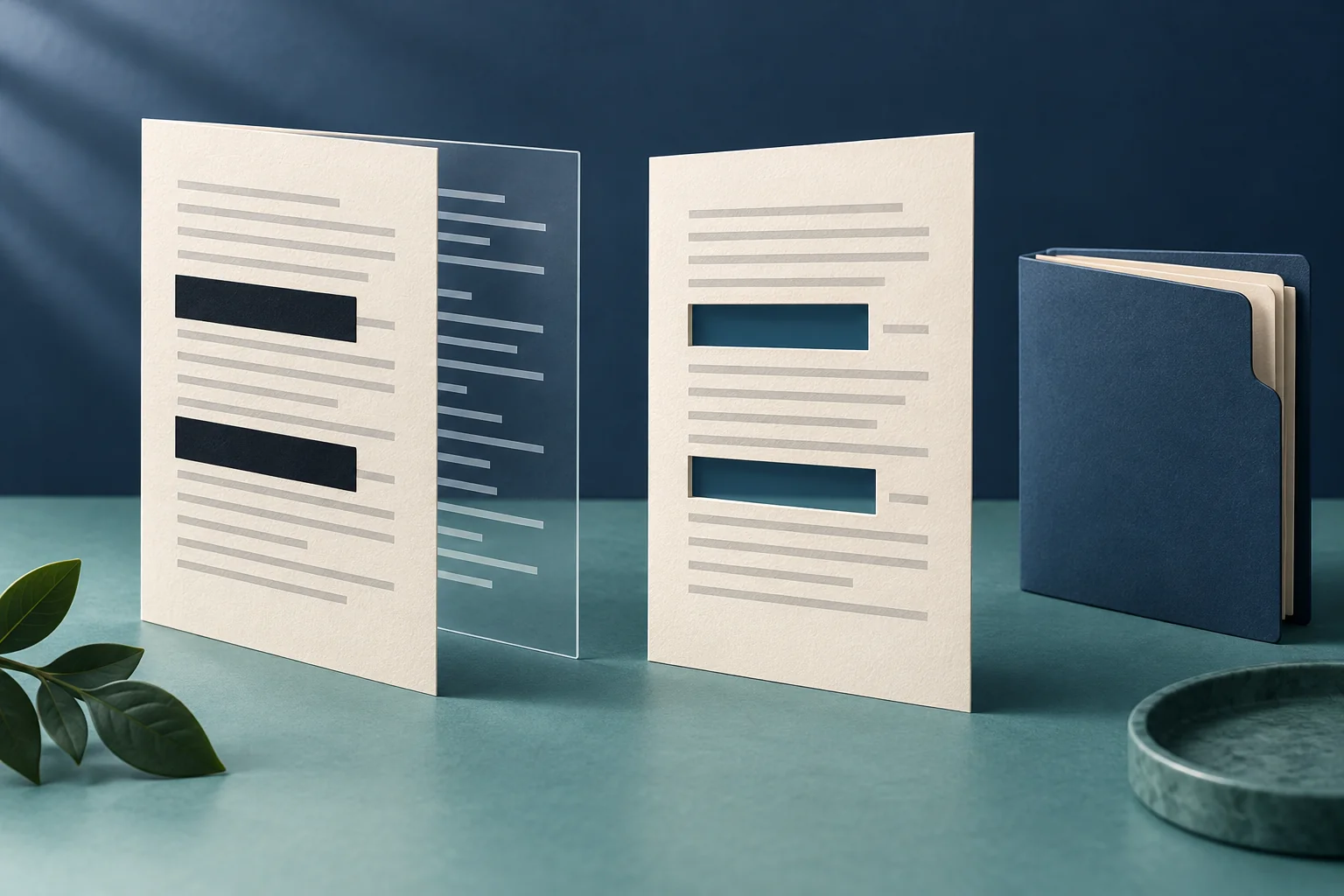
The black rectangle looks perfect. The name is gone from view. That is the moment to close the file, reopen the saved copy and check whether the information is actually gone—not the moment to attach it to an email.
For an OSINT report, redaction has two jobs: remove information the recipient should not receive, and leave enough context to understand the finding. Work on a copy you are authorized to edit. Keep the source evidence separately, with access limited to the people who need it.
Decide what the reader needs before opening the editor
A report about a supplier’s advertised address may need the public company address. It probably does not need an unrelated customer’s contact details caught in a screenshot. Removing every name would make the report hard to follow; leaving every visible detail would share more than the task requires.
Make a short removal list by information type and location: an incidental personal email on page two, a private phone number in an attachment, a reviewer’s comment, a draft title in the file properties. Include repeated appearances. Searching for one spelling alone can miss an image, a spaced number or a different form of the same detail.
Also check the remaining context. If you remove a name but leave a unique job title, exact date and distinctive quotation, the recipient may still infer who it is. Whether that is acceptable depends on the intended disclosure, not on the color of the redaction box.
Use removal controls, then save the result
A drawing or highlight may merely sit over text. Use a tool designed for redaction and complete its apply step. In Adobe’s current Acrobat Pro instructions, you select material for redaction, apply it, choose whether to remove hidden information and save the resulting document. A marked area awaiting application is unfinished work.
Visible pages are only part of the file. Adobe’s redaction and sanitization tutorial covers hidden material such as comments, metadata and layers. Review the available controls for the tool you use. Do not assume a filename ending in “clean” means those checks happened.
Save a clearly named release copy in a separate folder. Do not overwrite the evidential original or edit the copy after the final review without reviewing it again. If you are using a cloud editor, check that the file and its contents may be uploaded there; confidential reports should not be submitted to an unfamiliar free converter.
Four checks on the exact copy you will send
- Reopen and read the pages. Check the removed areas, surrounding words, captions, thumbnails and every repeated occurrence. Confirm that the remaining report still says what you intended.
- Search and copy the remaining text. On your own release copy, search for the strings on your removal list and inspect ordinary copy-paste output. Finding a removed value is a failure. Finding nothing is useful, but does not prove that every possible hidden object is clean.
- Inspect non-page content. Review properties, comments, attachments, layers and form fields where the document and reader expose them. Use the editor’s hidden-information or sanitization review as well; a basic reader may not reveal everything.
- Check the delivery package. Open the attachment from the prepared message or sharing folder before sending. Confirm that it is the reviewed file, not the original, and that a shared folder does not include earlier versions for the recipient.
These checks address different failures. A visual check catches a missed screenshot. A text check catches some material left behind a covering shape. A delivery check catches the painfully simple mistake of attaching the wrong file. For consequential disclosures, ask a second authorized reviewer to check the final copy.
The ICO’s secure disclosure guidance discusses the risk of hidden information in shared documents. It is a useful reason to treat redaction as a release process rather than a cosmetic edit. No single search, screenshot or export option certifies every PDF.
Try a harmless practice file first
Proposed local exercise using invented data; this is not a claimed test of a particular PDF application. Make a one-page practice document containing the made-up reference DEMO-COPPER-742 twice: once in the body and once in a footer. Add the same reference to a comment if your editor supports comments. Use no real personal details.
Export your practice PDF, keep an untouched copy and redact the reference in a working copy using your chosen tool. Apply the changes, review hidden information and save. Close it. Reopen the saved release file and run the four checks above.
Write where the reference was found, which operation removed it and what the final check exposed. If the footer survives, the removal list was incomplete. If a comment survives, the page review was insufficient. If you accidentally reopen the original, your file-handling process needs clearer separation. The point is to find a weakness with harmless material before using the same workflow on a real report.
Preserve the explanation without preserving the private detail
Replace a removed incidental name with a neutral role label where needed, such as “Customer A,” and explain that the shared version has been redacted. Keep any private mapping separately. Do not change a quoted sentence so that a qualification or negation disappears along with a name.
The PDF text-verification guide is useful when the visible page and copied text disagree. The metadata guide explains why document properties deserve their own review. Neither substitutes for checking the final release copy.
Record the original filename, release filename, removal categories, editor and version, check date and reviewer. You can add a file hash to identify the reviewed copy. It identifies bytes; it does not prove that your redaction choices were complete.
When preparing an OSINT Jet specialist research request, begin with the question, relevant public links and the minimum supporting material. A carefully reduced excerpt often communicates the problem better than a complete private dossier. Do not assume OSINT Jet automatically redacts uploaded files; finish your own disclosure review before sharing them.
Published 13 October 2026 · OSINT Jet